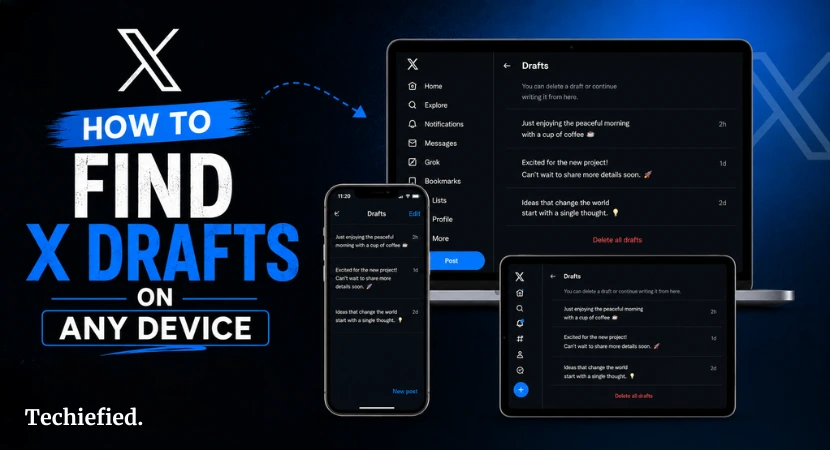
You saved a draft on your phone, opened X on your laptop, and it wasn’t there. Or you closed the app mid-tweet and can’t find where it went. Both are common, and both have straightforward fixes. This article covers how to find Twitter drafts on iPhone, Android, PC, and the X.com web app.
Quick answer: To find Twitter drafts, tap the compose icon in the X app or on X.com, then tap Drafts in the top-right corner of the compose window. Your saved drafts appear as a list ready to edit and post.
What are Twitter drafts?
Twitter drafts or Drafts on X are unfinished posts you’ve started but didn’t publish. When you close the compose window after typing something, X asks if you want to save. If you tap Save, it goes to your Drafts list.
For years, those drafts only existed on the device where you saved them. Write a draft on your iPhone, log in on your laptop, and it wouldn’t be there.
How to find Twitter drafts on iPhone
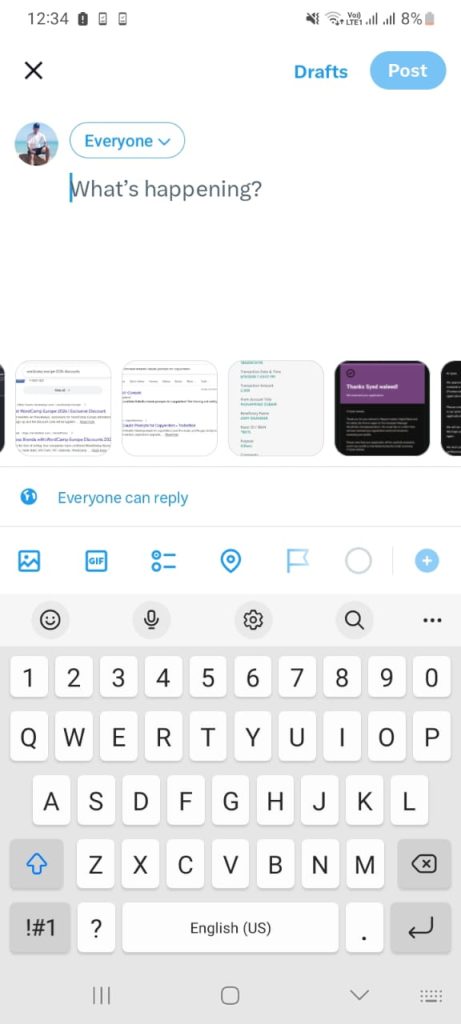
- Open the X app on your iPhone and tap the compose icon (the pencil icon, bottom right). The compose window opens. Look at the top-right corner and you’ll see a Drafts button. Tap it.
- Your saved drafts appear as a list, sorted by most recent. Tap any draft to open it back in the compose window, edit it, and post.
- One thing to note: the Drafts button only appears when you have at least one saved draft. If you’ve never saved a draft or cleared your app data, the button won’t show.
- If you’re on iOS and logged into the same account on X.com, any draft you save here will also appear on the web automatically. The sync works both ways.
[Screenshot: X iPhone app compose window with Drafts button highlighted in top-right corner]

How to find Twitter drafts on Android
Open the X app and tap the compose icon at the bottom right of the screen. In the compose window, tap Drafts in the top-right corner. Select any draft to pick up where you left off.
The steps are the same as iPhone. The compose window layout is nearly identical across both platforms.
The difference is sync. Android cross-device sync is still rolling out in 2026 as part of X’s Android app redesign. If your drafts don’t show up on X.com after saving them on Android, your app version probably hasn’t received the update yet.
To check: save a draft on Android, then open X.com on a browser. If the draft appears in the web compose window, sync is active on your account. If it doesn’t, you’re on the older local-only version for now.
If X drafts aren’t showing at all on Android, 2 common causes:
- You cleared the app cache recently. Local drafts that hadn’t synced yet are gone when cache is cleared.
- You’re checking a different account. Drafts are account-specific.
[Screenshot: X Android app compose window with Drafts button visible top-right]
How to find Twitter drafts on Desktop and PC (X.com on web)
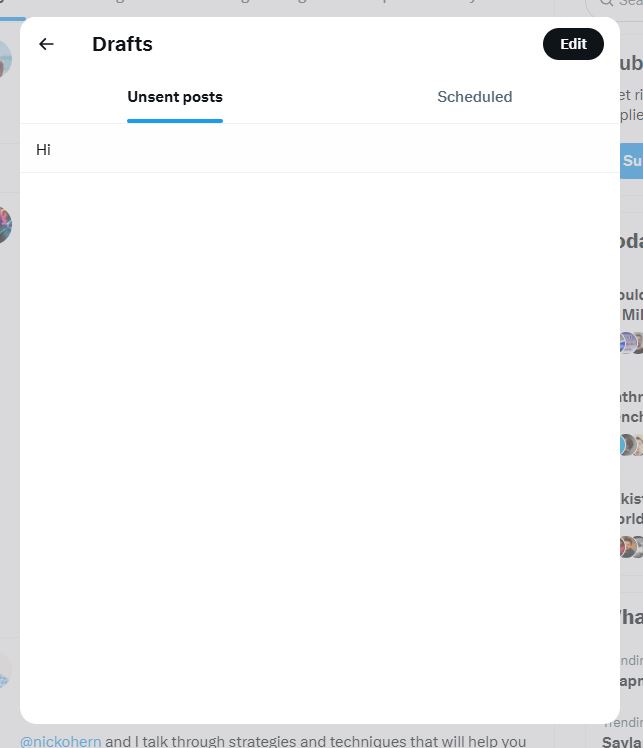
Go to X.com and log in. In the left sidebar, click Post or go directly to x.com/compose/post. Inside the compose window, you’ll see a Drafts or Unsent Posts option. Click it.
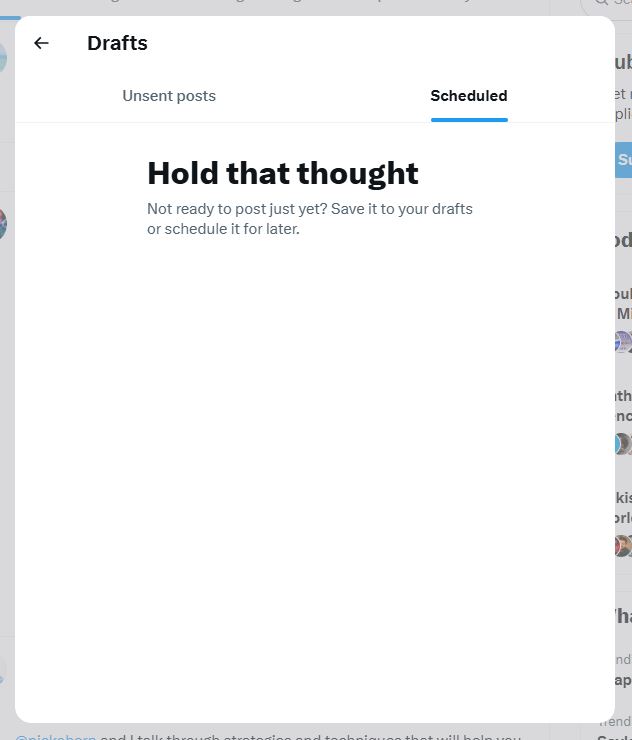
The Drafts page opens with 2 tabs: Unsent Posts and Scheduled. Your saved drafts are under Unsent Posts. Click any draft to open and edit it. When you’re ready to post, hit Post as normal.
To delete a draft, tap Edit in the top-right corner of the Drafts page, select the draft, and delete it.
[Screenshot 1: X.com compose window showing Drafts/Unsent Posts option]
[Screenshot 2: Drafts page showing Unsent Posts and Scheduled tabs with Edit button]
How to find Twitter drafts on mobile browser
If you’re on X.com through a mobile browser rather than the app, the flow is the same as desktop. Go to x.com/compose/post, tap the Drafts or Unsent Posts option inside the compose window, and your saved drafts appear.
One thing worth knowing: if you have the X app installed on your phone, tapping links to X.com may redirect you to the app. If that happens and you want to stay on the web version, open X.com in a private/incognito tab instead.
Do Twitter drafts sync across devices now?
Yes, with conditions.
X rolled out synced drafts in October 2025. Drafts you save on the iOS app now appear on X.com desktop, and anything you save on the web shows up in your iPhone app. The sync is automatic.
Android sync is still rolling out. X tied it to a broader Android app redesign, so whether you have it depends on your app version. The quickest way to check: save a draft on your Android app, then open X.com on a browser. If the draft appears under Unsent Posts, sync is active on your account.
What doesn’t sync: media. If your draft has an image or video attached, the text carries over but the media won’t appear on the other platform. For now, keep media in your camera roll or a scheduling tool and re-attach when you’re ready to post.
So if you saved Twitter drafts on iPhone and can’t find those on desktop, open X.com, go to x.com/compose/post, and check Unsent Posts. It should be there.
What are common fixes if Twitter drafts are not showing up?
Most “missing draft” problems come down to 1 of a few causes. Here’s what to check:
Draft missing after clearing app cache
Clearing the X app cache deletes any local drafts that hadn’t synced to the cloud yet. If you were on Android and sync wasn’t active, those drafts are gone. There’s no recovery option.
Saved on Android, checking on desktop
Android sync is still rolling out. If your app version hasn’t received it yet, drafts saved on Android stay local. Check x.com/compose/post on desktop to confirm whether sync is active on your account.
Checking a different account
Drafts are account-specific. If you’re logged into a secondary or business account, you won’t see drafts saved under your main account. Switch accounts and check again.
Draft disappeared after an app update
This is a known occasional bug on X. There’s no official fix or recovery method. Going forward, for anything you can’t afford to lose, copy the text to your Notes app before closing the compose window.
Media not appearing in a synced draft
Expected behavior. Text syncs across iOS and web; media doesn’t yet. Re-attach your X media after opening the draft on the other device.
How to get Twitter drafts back if they’re gone
X has no native draft recovery feature. If a draft is deleted, there’s no restore option inside the app or on X.com.
That said, a few workarounds are worth trying before giving up:
Check if the browser tab is still open. If you were composing on X.com and closed the tab without saving, some browsers cache the page. Hit the back button or check your recently closed tabs.
Check your clipboard. If you copied the tweet text at any point, it may still be on your clipboard. Paste it into Notes or a new draft to recover it.
Check your Notes app. If you draft tweets externally before pasting them into X, the original may still be there.
Use a third-party scheduling tool going forward. Tools like Buffer, Hypefury, and Typefully save drafts to the cloud and sync across every device automatically. They also don’t get wiped by cache clears or app updates.
For anyone serious about Twitter X content, these tools do more than save drafts. If you want to see which ones are worth using, our list of best AI tools for Twitter growth covers the options that actually move the needle.
How to save a drafts on X correctly
If you can’t find a draft, there’s a chance it was never saved. Here’s how the save flow works on each platform.
On iPhone and Android: Start typing your tweet. Tap the X or back arrow to close the compose window. X will ask: Discard post or Save. Tap Save. The draft goes to your Unsent Posts list.
If you tap Discard by mistake, the draft is gone immediately. There’s no undo.
On desktop (X.com): Go to x.com/compose/post and start typing. Click away from the compose window or navigate elsewhere. X should prompt you to save. Click Save when prompted.
For drafts with media: Save the text draft on X as normal, but keep the image or video separately until you’re ready to post. Media doesn’t sync across devices yet, and re-attaching takes a few seconds. Saving media inside the draft adds no advantage at this point.
Twitter drafts vs scheduled posts
These two live on the same Drafts page but work differently.
Drafts (Unsent Posts) are posts you’ve saved but not scheduled. They sit in your Unsent Posts tab until you open them, finish them, and post manually.
Scheduled Posts are queued to publish automatically at a time you set. They appear in the Scheduled tab on the same Drafts page. You don’t need to do anything once a post is scheduled, X posts it for you.
The confusion usually happens when someone saves a draft thinking it will post later. It won’t. A draft only goes live when you open it and tap Post yourself.
To schedule directly from a draft: open the draft, tap the calendar icon in the compose toolbar, set your date and time, and tap Schedule instead of Post.
Last Word on How to Find Twitter Drafts
The steps on how to save Twitter drafts are straightforward on every platform. iPhone and Android use the compose window. Desktop goes through x.com/compose/post. The Drafts page has 2 tabs: Unsent Posts and Scheduled. Media still doesn’t sync cross-device, so keep that in mind if your X drafts include images or video.
