A weak hook kills a good LinkedIn post before anyone reads past the first line. LinkedIn’s algorithm decides whether to expand your post based on roughly the first 40 to 50 words. Get that opening wrong, and the rest of your writing never gets seen.
This step-by-step guide walks through a LinkedIn hook writer Claude skill built specifically to fix that problem. It’s trained on 131 real hooks from 21 working LinkedIn creators, and it uses a pixel-width model instead of a character count to judge hook length.
Here’s what this skill does, how to install it, and how to use it without handing your judgment over to AI.
What Is a LinkedIn Hook Writer Skill in Claude?
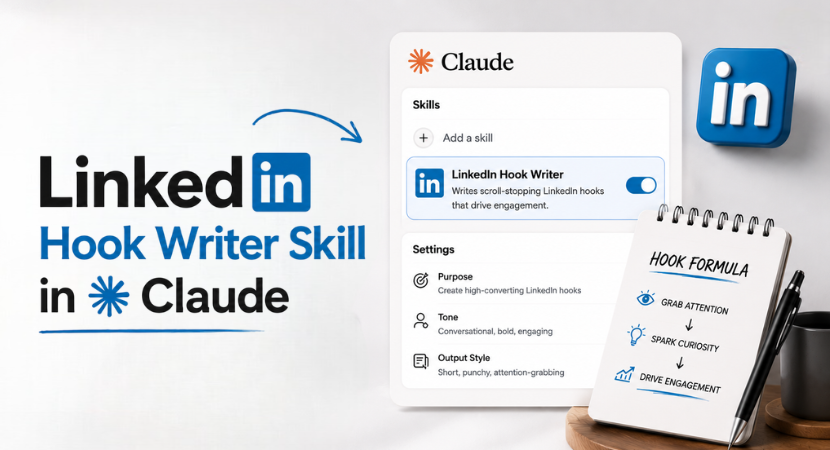
A Claude skill is a reusable set of instructions and reference material you upload once, so Claude applies the same rules every time you ask for a specific type of output. You can take this as the pack of LinkedIn Claude prompts.
In this case, the skill teaches Claude how strong LinkedIn hooks are actually built, based on patterns pulled from real, high-performing posts rather than generic AI guesses.
The skill package includes three files:
| File | Purpose |
|---|---|
| SKILL.md | The core instructions Claude reads and follows |
| hook-examples.md | Real hook examples the skill references |
| Install guide | Step-by-step setup instructions |

To get this skill, you can reach out to info@techiefied.com or to Diandra directly!
You feed it a post draft (or a topic, at minimum), and it returns multiple hook options across four different formats, explained below.
The quality and availability of these features can also depend on your version of Claude.
Why LinkedIn Writer Hook Length Isn’t About Character Count
This is the detail most AI tools for writing get wrong. LinkedIn hooks aren’t judged by how many characters they contain. They’re judged by how much horizontal space those characters take up on a mobile screen before the “see more” cutoff.
The letter W is the widest character on a standard keyboard. The letter I is the thinnest. A hook made almost entirely of narrow letters can run 100+ characters and still fit on one line.
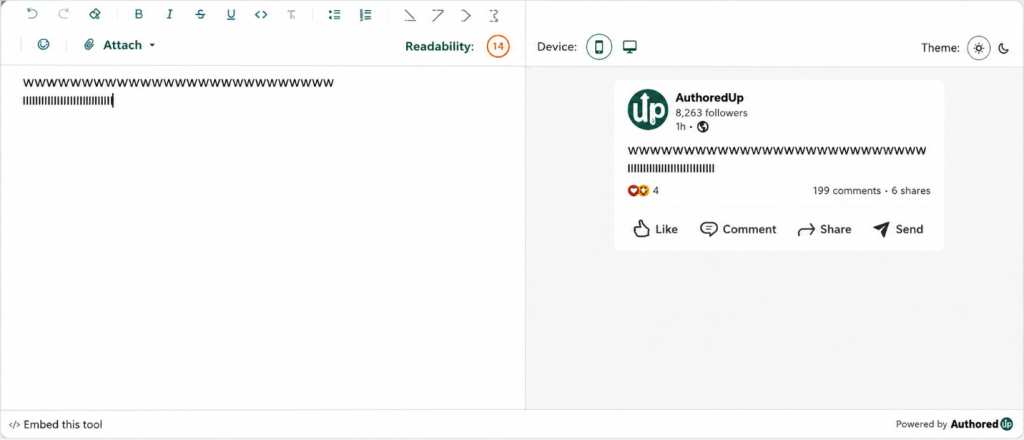
A hook packed with wide letters might run out of room at 30 characters. Same character count, completely different result on screen.
That’s why this skill runs on a pixel-width model instead of a character-count rule. It estimates how a hook will actually render on mobile, which is where most LinkedIn traffic happens, and adjusts hook length accordingly.
Layered on top of that are 40 writing rules based on what’s already working in the feed.
The 4 LinkedIn Hook Formats This Claude Skill Writes
Every hook it generates falls into one of four categories. Each one serves a different job.
| Format | Structure | Best For |
|---|---|---|
| Dense | Continuous text, no line breaks, packed to the character limit | Maximizing information before the cutoff |
| Punchy + Context | Short bold claim on line one, supporting line after a space | Making a claim, then backing it up immediately |
| Single-Line Bomb | One line only, no context, forces a “see more” click | High risk, high reward. Use only when the single line is genuinely strong |
| Stacked | Three short lines stacked on top of each other, no line breaks between them | Building rhythm and tension line by line |
- Dense hooks cram as much value as possible into the visible space before LinkedIn cuts the post off. There are no line breaks and no wasted words.
- Punchy plus context hooks open with a short, bold claim, then follow with a second line that backs it up. A blunt statement followed by the number, result, or contrast that supports it.
- Single-line bomb hooks are the riskiest format on this list. The entire hook is one line, with two blank spaces added afterward to control where the “see more” cutoff falls.
There’s no context and no safety net. If the line doesn’t land, the post flops. Use this format only when you’re confident the single line can carry the whole hook on its own.
- Stacked hooks use three short lines in sequence, each building on the last, to create rhythm before the reader hits “see more.”
If the skill doesn’t return all four formats by default, you can ask for them directly. You can also exclude a format entirely, for example asking Claude to skip single-line bombs and stick to dense, punchy, and stacked only.
How to Install the LinkedIn Hook Writer Skill in Claude
There are two ways to set this up, depending on whether you want it available everywhere or scoped to one project.
Option 1: Install it as a global skill
- Go to Claude’s settings and open Capabilities.
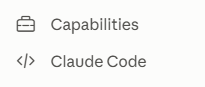
2. Confirm skills are enabled.
3. Go to Skills, then Create Skill.
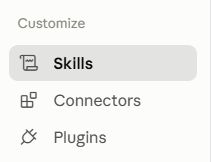
4. Upload the skill file (the zip containing SKILL.md).
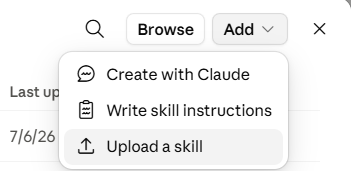
5. The skill is now available across all your conversations.
Option 2: Install it inside a single project
- Open the specific Claude project you want it in.
- Upload the skill file directly to that project.
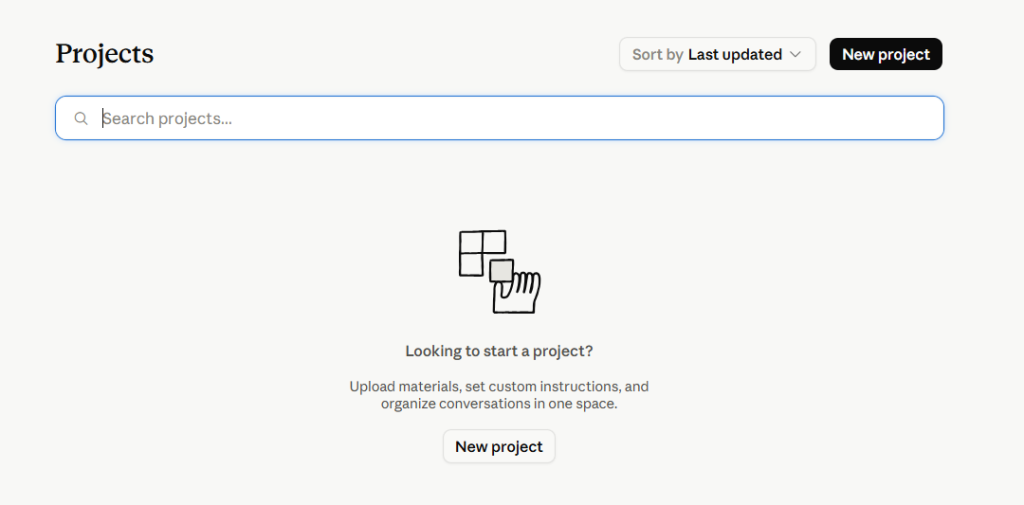
3. The skill only applies within that project, not globally.
🡪 Choose Option 2 if you’re testing the skill or only need it for one client’s content.
🡪 Choose Option 1 if LinkedIn hooks are a recurring part of your workflow.
How to Use the LinkedIn Hook Writer Skill: Full Guide By Diandra Escobar
Step 1: Prepare your input.
Paste the full post text if you have it. If you only give a topic, the skill will ask follow-up questions first, such as what the most surprising point is, who the post is for, and whether an image or carousel is attached.
This isn’t a bug. Vague input produces weak hooks, so the skill forces more context before generating anything.
Step 2: Prompt Claude directly.
Tell Claude explicitly to use the LinkedIn hook writer skill, then paste your draft.
For example: “Use the LinkedIn hook writer skill to give me hook options for this post.”
Mention if a carousel or image is attached, since that changes which formats work best.
Step 3: Review the output.
Claude returns multiple hooks across the four formats. Compare them against your audience and your goal for the post. A hook that works for a data-heavy B2B post won’t necessarily work for a personal story.
Once you’ve settled on a hook, make sure it leads people to a well-optimized LinkedIn profile that reinforces your credibility.
Step 4: Mix and match if needed.
You’re not locked into using one hook exactly as written. Take the opening line from one option and the second line from another if that combination reads stronger.
This also works well on old posts that underperformed. Paste a post that flopped, ask for new hook options, and test whether a different opening would have changed the outcome.
What This Claude LinkedIn Hook Writer Skill Won’t Do
Be clear on the limits before you rely on it.
- It won’t write full LinkedIn posts. It writes hooks only.
- It won’t invent statistics or data points that aren’t in your draft. If your post has no real numbers to work with, the skill will build the hook around a different angle instead of making one up.
- It won’t replace your judgment about your audience, your niche, or your writing voice. You still decide which hook fits and which doesn’t.
AI works inside the patterns it’s been trained on. It can’t originate a genuinely new angle the way a person thinking from experience can.
Use this LinkedIn Claude skill to generate options fast, not as a replacement for your own read on what your audience responds to.
Final Take on LinkedIn Hook Writer Skill on Claude
This LinkedIn hook writer skill by Diandra Escobar solves one specific problem well: writing multiple, format-varied hook options fast, based on real patterns. It doesn’t fix a broken content strategy, and it won’t tell you which hook fits your brand better than you already know.
Feed the skill a real draft, give it context, and treat the output as a shortlist to choose from, not a finished decision.
