Building an app on your computer is easy. You write the code or describe what you want to an AI tool, and it runs.
But putting that app online is usually where the trouble begins. You have to configure Docker, set up Linux, handle security certificates, and connect databases. It often takes hours.
If you use serverless platforms, your app has to wake up every time a user visits, causing a delay. Your files also disappear when the server restarts. If you use traditional virtual private servers, you spend hours configuring terminal files.
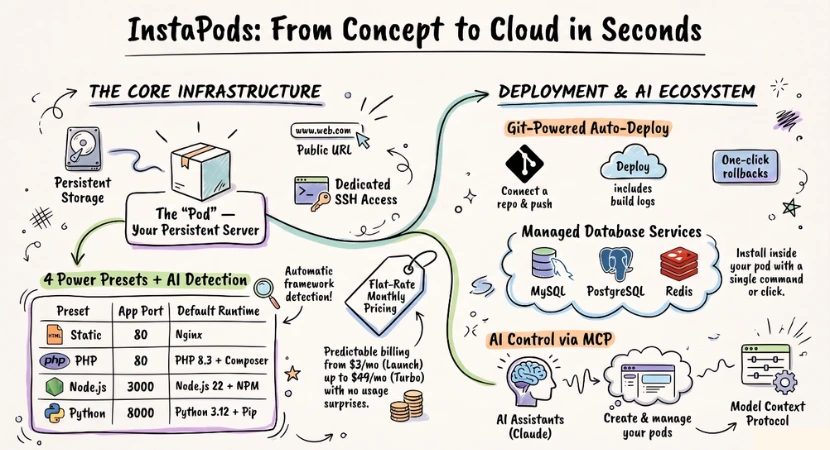
InstaPods fixes this. It gives you a running Linux server in under two seconds. Your files stay on the disk, your databases run in the same place, and you pay a flat monthly fee.
What is InstaPods And How Does It Deploy Apps?
InstaPods is a flat-rate cloud hosting platform starting at $3 a month that provisions persistent, real Linux servers in under 2 seconds. Unlike serverless hosting where files are temporary, InstaPods provides full server file persistence, pre-configured software presets (Static, PHP, Node.js, and Python), co-located databases (Postgres, MySQL, Redis), and direct SSH access. It works with code built by hand or exported from AI design tools.
Ephemeral Serverless vs. Always-On Pods
Most developers are used to serverless platforms. These platforms run your code in temporary directories. When a user visits your app, the platform creates a server, runs your app to serve the page, and then tears it down.
This causes two major issues.
First, your app takes several seconds to wake up. This is a cold start.
Second, your files disappear. If you save an image or a local database file, it vanishes when the server shuts down.
You have to pay for separate storage services just to save simple files.
InstaPods works differently by giving you an always-on, real Linux server called a Pod. A Pod is a lightweight, persistent Linux server that runs 24/7, meaning there are no cold starts or sleep cycles. Your app is always awake and ready to load.
Because a Pod behaves like a dedicated physical server, your files never disappear. Every file you upload, library you install, and database configuration you save stays on the disk.
Even if you restart your Pod, everything is exactly where you left it. It gives you the power of a dedicated virtual server, but it launches in under two seconds.
Step-by-Step Node.js Deployment on Instapods (The Always-On API)
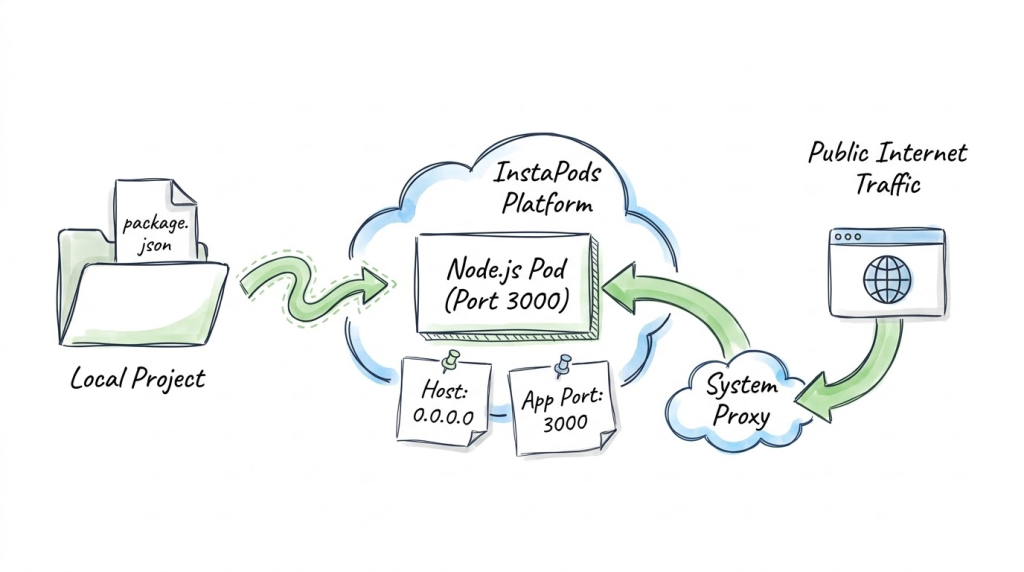
The InstaPods Node.js preset supports versions 18, 20, 22, and 24. It runs your application as a background systemd service on a persistent Linux server.
How do you configure port binding for Node.js on InstaPods?
Your Node.js app must listen on port 3000. You must also configure your server to bind to host address 0.0.0.0 instead of localhost or 127.0.0.1.
If you do not bind to 0.0.0.0, the system proxy cannot find your app. Public internet traffic will return a 502 error.
Here is a basic Express configuration that works correctly:
const express = require(‘express’);
const app = express();
app.get(‘/’, (req, res) => {
res.send(‘Hello from InstaPods!’);
});
// Always bind to port 3000 and host 0.0.0.0
app.listen(3000, ‘0.0.0.0’, () => {
console.log(‘Server is running on port 3000’);
});
Two Ways to Deploy on Instapods
You can deploy your code using either the web browser or your local terminal.
The Web Browser Path (For Vibe Coders)
Create a Node.js pod in your dashboard. If you exported your code from Claude or ChatGPT, go to the Import tab, paste your public share link, and click deploy.
The platform automatically pulls your files and starts your server.
The Terminal Path (For Traditional Developers)
Install the command-line tool on your computer. Navigate to your project folder and run this single command:
instapods deploy my-node-app
This command automatically creates the pod if it does not exist, uploads your files, and starts the service.
What Happens Under the Hood?
When you run a deployment or trigger instapods pods reload, the backend looks for your package.json file. If found, it automatically runs npm install –production so you do not have to install dependencies manually. It then restarts the systemd service (app.service) to put your changes live.
Step-by-Step React Deployment on Instapods (The Nginx SPA Path)
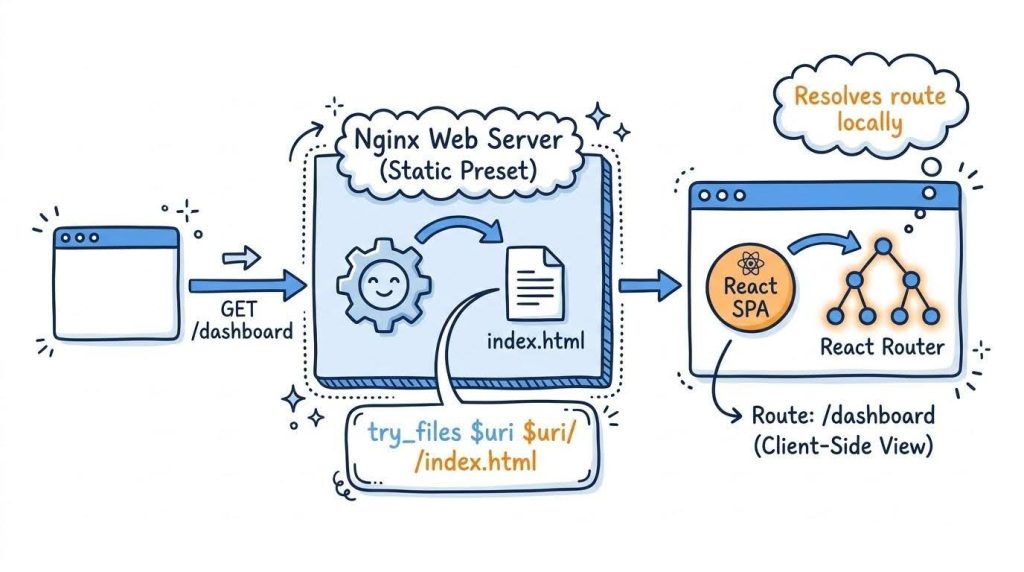
React is a client-side framework. It builds your application into static HTML, CSS, and JavaScript files. You do not need a running Node.js process to serve these files on your server.
Why host React on the Static preset instead of Node.js?
Hosting static assets directly through Nginx uses almost no memory compared to running a persistent Node.js process. It keeps your pod fast and leaves all your pod’s RAM available for backend APIs or databases.
How to Fix the React Router 404 Error
When you use client-side routing, your app handles page changes in the browser. But if a user goes directly to your URL at /dashboard and refreshes the page, Nginx will try to find a physical folder called /dashboard on the disk.
When Nginx cannot find it, it returns a 404 error.
You must configure Nginx to redirect all requests back to your main index.html file. Your JavaScript router will then read the URL and load the correct view.
Open your web terminal or SSH into your pod and run this command:
sudo sed -i ‘s|try_files $uri $uri/ =404;|try_files $uri $uri/ /index.html;|’ /etc/nginx/sites-available/default
“`
Then test and reload Nginx to apply the configuration:
“`bash
sudo nginx -t && sudo systemctl reload nginx
“`
How to Deploy Your React App on Instapods
First, build your application locally on your computer to compile your static files:
“`bash
npm run build
“`
This creates a `dist` or `build` folder. Deploy only this compiled folder to your Static pod:
“`bash
instapods deploy my-react-app –local ./dist
“`
Your site is now live. Because Nginx serves the files directly, you do not even need to reload your pod when you upload future code changes.
Step-by-Step Python Deployment on Instapods (FastAPI, Flask, and Gunicorn)
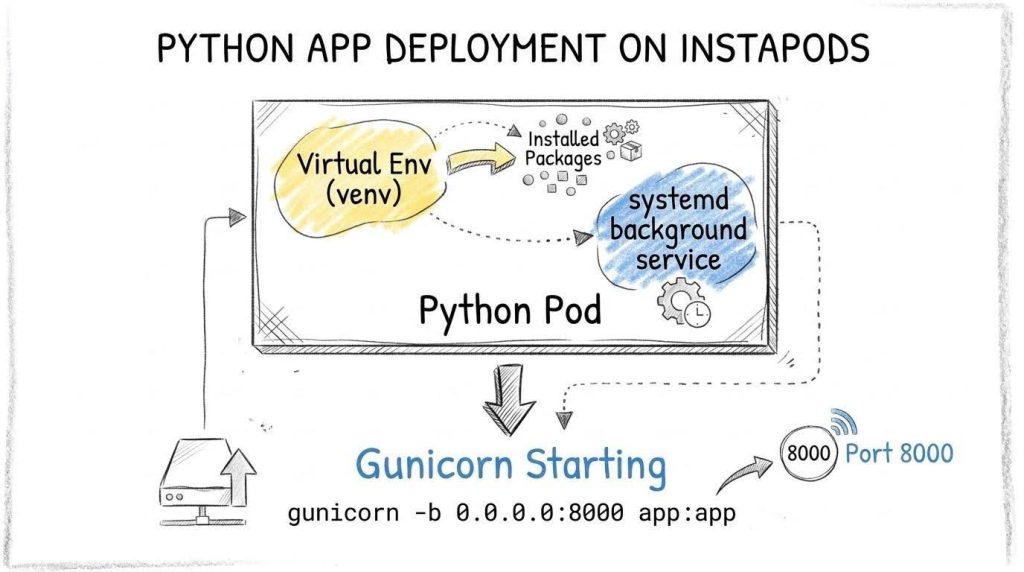
The Python preset supports versions 3.11 and 3.12, with 3.12 running as the default. It manages your application process using a background systemd service on your persistent server.
What is Gunicorn Auto-Detection In The Python Preset?
When you create a Python pod, the platform automatically builds a virtual environment (venv) inside your server at /home/instapod/app/venv. This environment is already activated when you log in via SSH or open the web terminal, meaning you can run standard python commands without activating it manually.
During deployment, the platform looks for a requirements.txt file in your directory. If it finds one, it automatically runs pip install -r requirements.txt to install your library dependencies inside the virtual environment.
By default, the systemd service starts your app by running python app.py. But if you list gunicorn in your requirements.txt file, the platform automatically swaps the startup command.
Instead of standard Python, it configures systemd to run your app with Gunicorn on port 8000:
gunicorn -b 0.0.0.0:8000 app:app
If the platform detects a wsgi.py file in your directory, it automatically uses wsgi:app instead of app:app, which allows Django projects to deploy without manual command edits.
How To Configure Port Binding For Python On InstaPods
Your Python application must bind to host address 0.0.0.0 and listen on port 8000. Traffic from your public URL is automatically proxied directly to this port.
Here is a complete FastAPI configuration that binds to the correct port and host:
# app.py
from fastapi import FastAPI
import uvicorn
app = FastAPI()
@app.get(‘/’)
def hello():
return {‘message’: ‘Hello from InstaPods!’}
if __name__ == ‘__main__’:
# Always bind to 0.0.0.0 and port 8000
uvicorn.run(app, host=’0.0.0.0′, port=8000)
List your dependencies in your requirements.txt file so the platform can configure Gunicorn or Uvicorn:
fastapi>=0.100
uvicorn>=0.20
gunicorn>=21.2
Deploying Your Python App
You can sync your local directory and reload the pod from your terminal:
instapods files sync my-python-app
instapods pods reload my-python-app
The Instapods system will install your libraries, configure Gunicorn if needed, and restart your backend service in seconds.
Database Integration: Co-locating PostgreSQL, MySQL, and Redis
Most cloud platforms force you to host your database on a separate service. This means you have to configure external network access, manage separate bills, and deal with network latency.
InstaPods lets you install database services directly inside your pod. Each database runs securely alongside your application on the same server, accessible via localhost.
The Secure Default Configuration
When you install a database inside your pod, it is automatically configured to listen on localhost only.
This is an important security feature. Your database ports are completely blocked from the outside internet. Brute-force port scans cannot reach your database because there is no public port open to the web. Your app connects securely within the local filesystem of your Pod.
Step-by-Step Local Database Setup
Here is how to set up PostgreSQL 14 inside a pod named my-api.
Step 1: Install the Database
Run the install command with the wait flag (-w). The installation takes about 8 to 15 seconds:
instapods services add my-api -s postgresql -w
Step 2: Retrieve the Auto-Generated Credentials
Get your connection details. The system automatically generates a unique, secure password for the default instapod user:
instapods services creds my-api -s postgresql
This command returns your host, port, username, database name, and password.
Step 3: Inject Credentials Securely
Write these credentials to your pod’s environment variables. This keeps secrets out of your code files:
instapods env set my-api DB_HOST=localhost DB_PORT=5432 DB_NAME=instapod DB_USER=instapod DB_PASS=your_generated_password
After setting the variables, restart your application to apply the changes:
instapods pods reload my-api
Database Connection Code Examples
Once your environment variables are configured, use these standard connection patterns in your app.
Node.js PostgreSQL Connection (Using pg)
First, make sure dotenv and pg are in your package.json dependencies.
// db.js
const { Pool } = require(‘pg’);
require(‘dotenv’).config(); // Loads variables from .env
const pool = new Pool({
host: process.env.DB_HOST || ‘localhost’,
port: parseInt(process.env.DB_PORT || ‘5432’),
user: process.env.DB_USER || ‘instapod’,
password: process.env.DB_PASS,
database: process.env.DB_NAME || ‘instapod’
});
module.exports = pool;
Python PostgreSQL Connection (Using psycopg2)
Add python-dotenv and psycopg2-binary to your requirements.txt file.
# db.py
import os
import psycopg2
from dotenv import load_dotenv
load_dotenv() # Loads variables from .env
def get_db_connection():
return psycopg2.connect(
host=os.environ.get(‘DB_HOST’, ‘localhost’),
port=os.environ.get(‘DB_PORT’, ‘5432’),
user=os.environ.get(‘DB_USER’, ‘instapod’),
password=os.environ.get(‘DB_PASS’),
dbname=os.environ.get(‘DB_NAME’, ‘instapod’)
)
Interactive vs. Automated Deploys For Developer Workflows on Instapods
Workflow A: The AI Explorer and Vibe Coder
If you build your app with AI, you probably do not want to manage local development environments on your computer. InstaPods lets you run and edit your code directly inside your browser.
First, you can deploy your application straight from public AI share links. If you built a page or tool in Claude or ChatGPT, copy your public share URL.
Go to the Import page in your InstaPods dashboard, paste the URL, and click deploy.
Behind the scenes, the importer fetches your code, selects the target preset (like Static), provisions your server, and copies your files into the app folder.
For React artifacts built in Claude, the system deploys a single-page static pod that loads React and Tailwind from CDNs, compiling your code in the browser with Babel. You do not have to worry about a local compile step.
To make changes to your files, click Open IDE in your dashboard.
This opens a code editor in a new browser tab powered by Monaco, which is the same engine behind VS Code. You can open up to 10 files in separate tabs, rename directories, and drag and drop folders from your computer to upload them.
Saving a file writes the changes directly to your running pod with no separate deployment delays.
If you need to run terminal commands, the dashboard’s Terminal tab connects a responsive, WebSocket-based interactive bash shell. This shell starts inside your pod’s app root as the non-root instapod user.
You can use standard bash commands to run your scripts, check system files, or install new system packages using sudo.
Workflow B: The CLI and Git Power User
If you write code locally or work with standard git repositories, you can manage your entire deployment cycle from your computer’s terminal.
First, install the binary using the curl installer script:
curl -fsSl https://instapods.com/install.sh | sh
Once installed, run instapods login to authenticate. Your browser will open to complete a secure PKCE flow. The CLI saves your session token locally on your machine at ~/.instapods/config.json.
To connect your local project to GitHub, go to your pod’s Git tab in the dashboard or run the connect command in your terminal:
instapods git connect my-app –repo https://github.com/your-username/your-repo –deploy
This connects your repository, installs the InstaPods GitHub App, and starts your first deploy.
Now, every time you run git push to your main branch, GitHub fires a webhook. Your server will pull the latest code, auto-detect your stack, install updated dependencies, build your assets, and reload your background service.
If you want to push a commit without triggering a rebuild (like editing your README file) add [skip deploy] to your commit message. Instapods will automatically ignore the push.
If a build fails due to a code error, InstaPods automatically keeps your previous successful version running. This ensures a bad push never takes your live site offline.
You can inspect the error details and build logs from the dashboard’s terminal-style viewer or via the CLI.
If you ever need to revert your live application to a previous version, you can roll back instantly with one command:
instapods git rollback my-app
Omit the deployment ID to return to the immediately previous build, or pass a specific deployment ID to jump back to any commit in your deploy history.
Quick View: How Node, React, and Python Run on Instapods
Choosing the right preset ensures your app runs with the lowest possible resource usage. This table compares how Node.js, React (Static), and Python run on Instapods:
| Feature | Node.js Preset | React (Static Preset) | Python Preset |
| System Web Server | Nginx Reverse Proxy | Nginx (Direct File Server) | Nginx Reverse Proxy |
| App Port | 3000 | 80 | 8000 |
| Process Manager | systemd (app.service) | nginx (system) | systemd (app.service) |
| Package Manager | npm | None | pip (virtual environment) |
| Startup Process | node index.js | Direct static file delivery | python app.py or Gunicorn |
| Ideal Plan | Launch ($3/mo) or higher* | Launch ($3/mo) | Launch ($3/mo) or higher* |
*Note: The $3/mo Launch plan runs Node.js and Python perfectly. You only need to upgrade your Pod to the Build plan ($7/mo) or higher if you want to install and co-locate a managed database like Postgres, MySQL, or Redis.
Get Your App Online With Instapods
Deploying your code should not be a frustrating chore that keeps your projects stuck on your computer. By using persistent Pods instead of temporary serverless environments, you keep your configurations, databases, and files in one permanent place. You get full SSH access, browser-based editing tools, and simple flat-rate pricing without the worry of unexpected usage bills
Select your preset on Instapods, configure your app to bind to the correct port, and your app is ready for users.
